

Sometimes you need a product to exist in your catalog but not be visible to end users on the storefront. Whether you’re refreshing a product’s artwork, reserving a part exclusively for use inside a kit, or archiving a version for reference, the new Hidden On UI setting gives you a simple way to remove a product from storefront browse and search pages — without disabling it entirely.
Unlike disabling a part, which removes it from most admin views by default, hiding a part keeps it fully visible and manageable in both the front-end Part Maintenance page and the back-end Parts list. The product remains active in the system, so it won’t disrupt any existing carts, parent configurations, or kits that already reference it.
Benefits
- Maintain catalog control — temporarily pull a product from the storefront while you update its design, pricing, or description, then restore visibility when it’s ready.
- Minimize disruption — hidden products stay active, so in-progress carts, parent configurations, and kits that include the part are unaffected.
How It Works
- In the back end, navigate to Parts and open the part you want to hide.
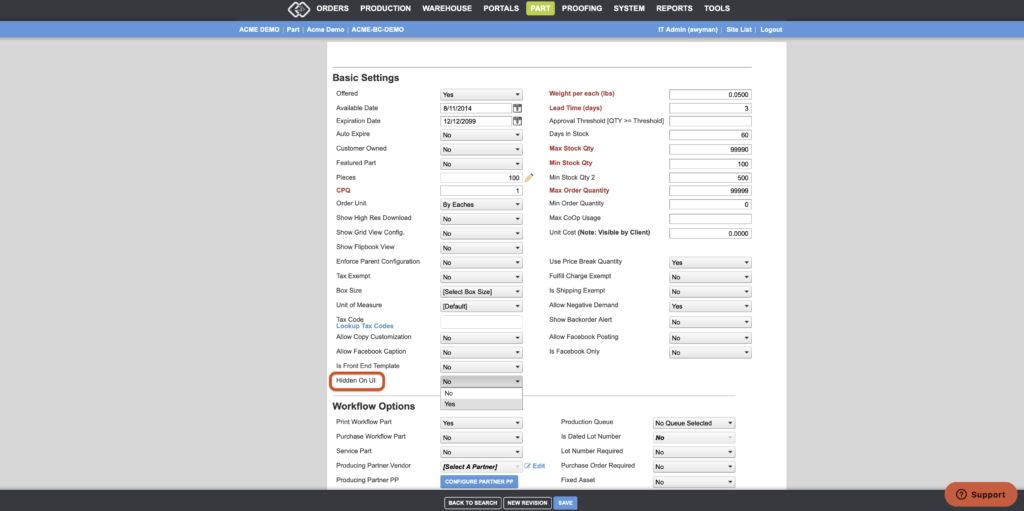
- Locate the Hidden On UI toggle among the part-level settings at the top of the part detail page.
- Set the toggle to Yes.
- Click Save. The part will immediately stop appearing on storefront browse and search pages for all end users.
To restore the product’s visibility, simply return to the part and set Hidden On UI back to No.
Important Notes
- This setting only affects storefront visibility — specifically the browse and search pages. If a user already has the product in their cart, they can still check out with it.
- Products inside a Parent Configuration or Kit are not affected — the hidden part will still appear as expected when accessed through those contexts.
- You can filter by the Is Hidden flag in the front-end Part Advanced Search to quickly locate all hidden products.
- The Hidden On UI flag is also included in standard part-level reports, so you can audit which products are currently hidden across your portals.
Ready to try it? Head to your Parts list, pick a product, and toggle Hidden On UI to see it in action.
Want to learn more about controlling product visibility in Propago? Check out our previous Did You Know articles:
If you have any questions or need support, you can contact our support team at: [email protected]
Find all of our Did You Knows here: Knowledge Library