

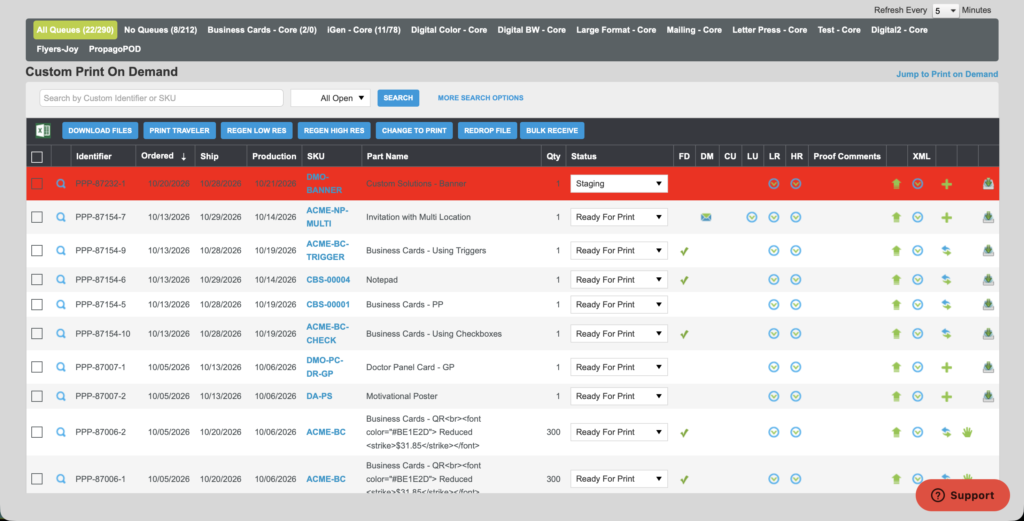
When an order needs to ship the same day, your production team shouldn’t have to find out after the job has already been sitting in the queue. Propago now highlights expedited Print On-Demand lines in red in the Production Queue, so production staff can see at a glance which jobs are flagged as expedited before production begins.
Expedited orders have always been highlighted in the Warehouse Fulfillment Window. This update brings the same visual cue to the Production Queue for orders that include Print On-Demand order lines.
Benefits to You
- Spot urgent jobs instantly — expedited lines stand out in red, so there’s no need to open each job or cross-check the order to find out what’s time-sensitive.
- Prioritize before production starts — production staff know which jobs are expedited before work begins, not after the order reaches the warehouse.
- Keep production and the warehouse aligned — both teams now see expedited orders flagged the same way.
- Meet same-day commitments with confidence — fewer missed cutoffs on the orders your customers need fastest.
How It Works
About Expedite Order
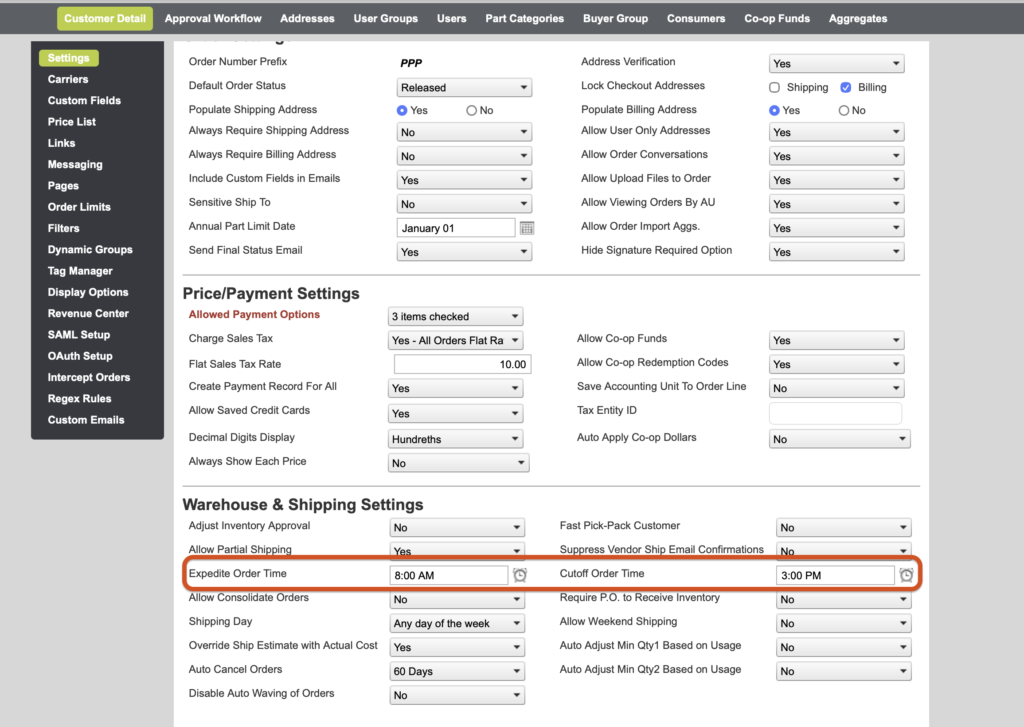
Expedite Order lets end users request same-day fulfillment for an order when it is placed within the Expedite Order window. At checkout, eligible users can check the option to rush the order, and the page shows the time through which a rush order can be requested.
Setting the Expedite Order window
The window is controlled by two portal-level settings:
- In the back end, go to Portals and select the customer.
- Open the Settings page.
- In the Warehouse & Shipping Settings section, find Expedite Order Time and Cutoff Order Time.
- Type in a time or select one with the time picker for each field, then save your changes.
Orders placed within this window can be requested as expedited.
Finding expedited jobs in the Production Queue
- Go to Production in the back end.
- Open the Production Queue and view the Custom Print On Demand list.
- Look for lines highlighted in red. These are expedited jobs.
Want to learn more about production and fulfillment in Propago? Check out our previous Did You Know articles:
- Did You Know You Can Now Create Consolidated Jobs for Non-Custom Print?
- Did You Know You Can Bulk Receive Custom Print On-Demand Jobs?
- Did You Know You Can Use Quick Ship to Minimize the Fulfillment Process for Personalized Items?
If you have any questions or need support, you can contact our support team at: [email protected]
Find all of our Did You Knows here: Knowledge Library