
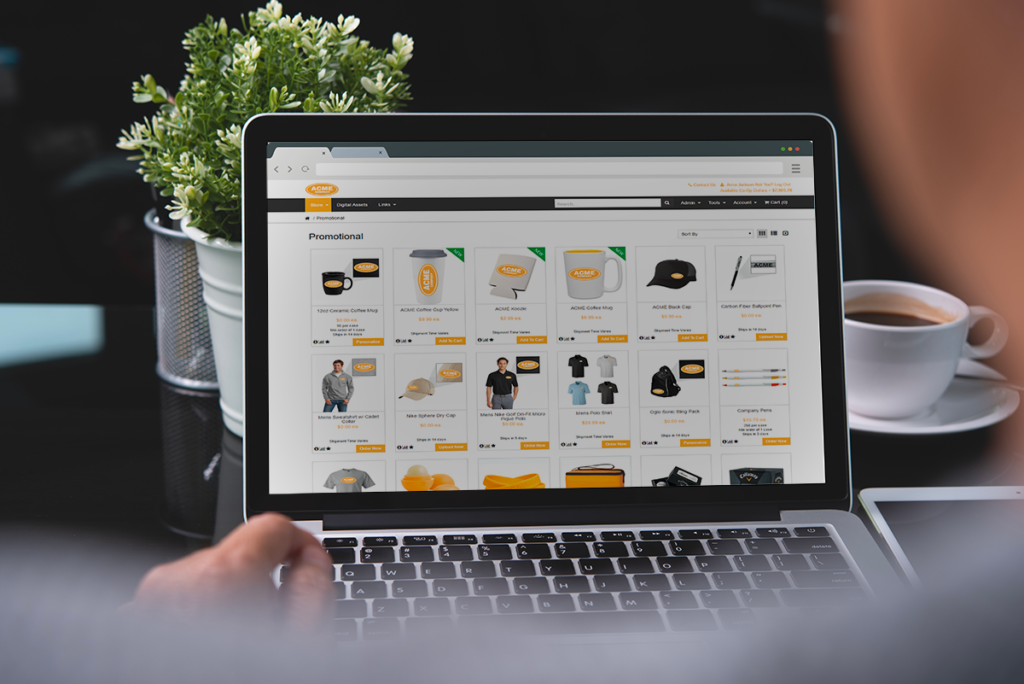
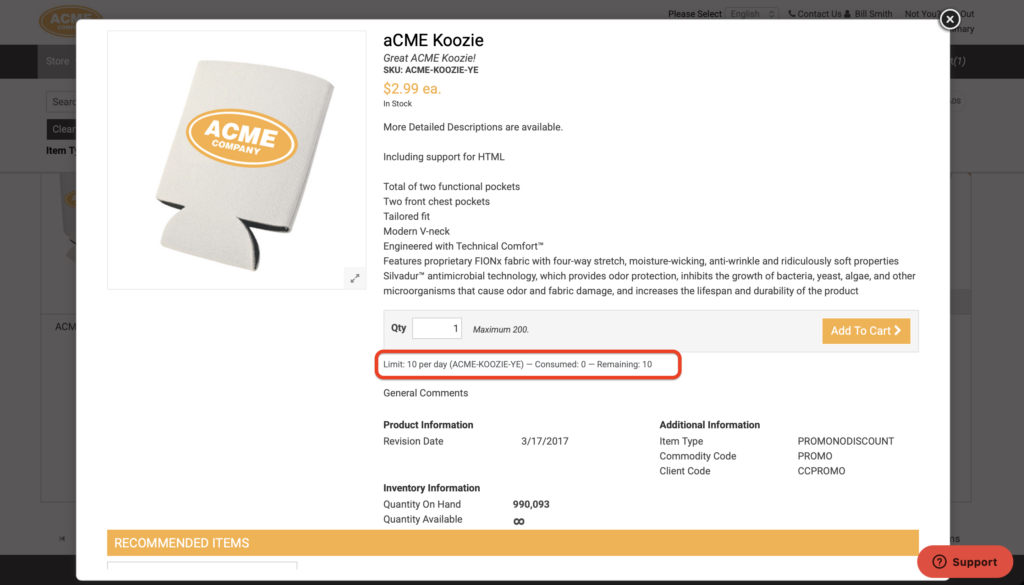
When product limits are in place, users haven’t always had an easy way to know how much of their allowance remains before they add items to their cart. Now, Propago automatically displays remaining product limit information directly in the Part Details modal, so users can see at a glance how much they can still order while browsing.
This feature is active by default for all products that have a part limit assigned to the viewing user or their user group. There’s nothing to enable — it just works. See the screenshot below for an example of what this looks like:
Benefits
- Transparency for end users — clear display of the limit, how much has been consumed, and how much remains builds trust and reduces support questions.
- Personalized to each user — the limit information reflects each user’s specific limit configuration and order history, so everyone sees only what’s relevant to them.
- Aggregate-aware calculations — if a product is part of a part limit aggregate, the remaining balance accounts for all aggregated SKUs, giving users an accurate picture.
How It Works
- When a user browses the storefront and clicks on a product to view its details, a new Part Limits section appears in the Part Details modal.
- This section displays three pieces of information:
- Limit — the maximum quantity allowed and the time frame (e.g., 10 per month)
- Consumed — how much of that limit has already been used, including quantities in the user’s current cart and any open orders within the active time frame
- Remaining — how much of the limit is still available
- This information only appears for products where the viewing user (or their user group) has a part limit configured. Users without a limit on that product — such as admins — will not see any limit information.
Control Visibility With Display Options
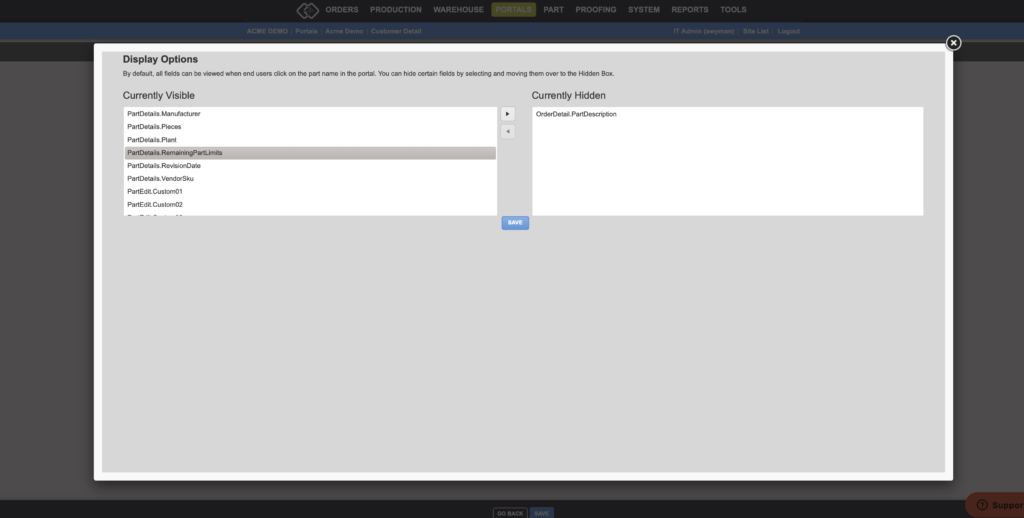
While active by default, you can hide the remaining part limit display on a per-portal basis:
- In the back end, go to Portals and select a customer.
- Click Display Options in the portal menu.
- Find the option labeled PartDetails.RemainingPartLimits in the Currently Visible column.
- Use the arrow button to move it to the Currently Hidden column.
- Click Save.
Give it a look next time you’re on a portal with product limits in place — open a product’s details and you’ll see the new limit information right there. If you have questions about configuring part limits or display options, your Propago support team is here to help.
Want to learn more about product limits and display options in Propago? Check out our previous Did You Know articles:
- Did You Know Product Limits Allow Your Clients To Control How Much Of A Product Users Can Order Over A Time Frame?
- Did You Know You Can Change Portal-Wide Display Options?
- Did You Know You Can Group Multiple Parts To Aggregate Together For Part Limits?
- Did You Know You Can Now Stack Aggregate Limits For Multi-Layered Control?
If you have any questions or need support, you can contact our support team at: [email protected]
Find all of our Did You Knows here: Knowledge Library