

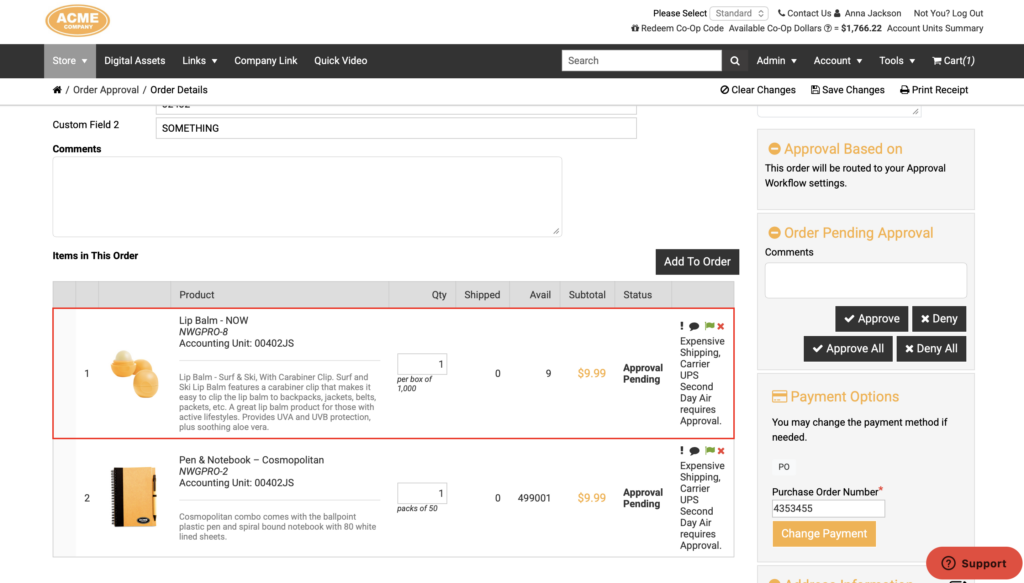
When an order is pending approval, approvers need context — not just that an order requires review, but why specific line items triggered it. The new Approval Notes field on Approval Workflows lets you attach a plain-language explanation directly to a workflow, so that note automatically surfaces on each order line that triggers it in the pending approval view. Approvers get immediate, item-level clarity without needing to dig through workflow configurations or follow up with the person who placed the order.
Benefits to You
- Give approvers instant context at the line level — instead of seeing a bare approval trigger, approvers see a clear explanation tied to each line item that flagged for review.
- Reduce back-and-forth during the approval process — when the reason is already attached to the order line, approvers can act faster and with more confidence.
- Set it once per workflow, apply it everywhere — the note you enter on a workflow automatically applies to every rule within that workflow, so there’s no need to annotate individual rules or orders manually.
- Handle complex orders cleanly — when a single order line triggers multiple approval workflows, all of the associated notes are combined and displayed together on that line, giving approvers the full picture.
How It Works
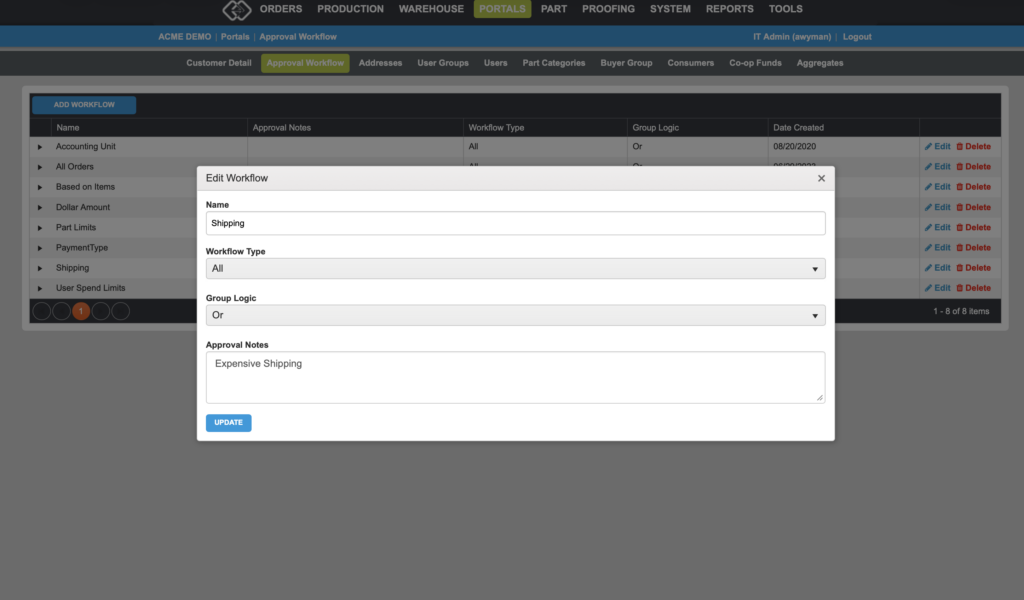
- In the back end, navigate to Portals > Select a Customer > Approval Workflow and open an existing workflow to edit it, or create a new one.
- Locate the new Approval Notes field on the workflow.
- Enter the note you want approvers to see when this workflow is triggered — for example, “This order exceeded the monthly spending limit for this user group” or “Carrier selection requires manager sign-off per policy.”
- Save the workflow.
Once configured, any order line that triggers this workflow will display your Approval Notes text on the Pending Approval page, prepended to that line’s approval reason. If an order line triggers more than one approval workflow, the notes from each workflow are concatenated so approvers see a complete, combined reason for that line.
Key Points
- Approval Notes apply at the workflow level, meaning the note you enter will appear on every order line that triggers any rule within that workflow — there is no need to add notes to individual rules.
- The notes appear in the Pending Approval view and are visible to approving managers when reviewing an order.
- If a line item triggers multiple workflows simultaneously, all applicable workflow notes are joined together on that line.
Want to learn more about approval workflows in Propago? Check out our previous Did You Know articles:
- Did You Know You Can Now Require Users To Enter A Reason When An Order Triggers An Approval Workflow?
- Did You Know You Can Customize Approval Workflows Using A Variety Of Triggers, Rules And Approval Types To Meet Your Needs?
- Did You Know Parts Can Be Added Or Removed From Orders During Approval?
If you have any questions or need support, you can contact our support team at: [email protected]
Find all of our Did You Knows here: Knowledge Library