
If your operation uses Auto Wave Warehouse to streamline order processing, you know how much time it saves by waving orders and dropping pickslips and packslips automatically as inventory becomes available. Now that automation goes one step further: with the new Drop Additional Order Files setting, any files attached to an order — such as specification PDFs or proofs — are automatically dropped to your site connector at the same time the order is waved, with no extra manual steps required.
Benefits
- Eliminate manual file delivery — additional order files reach your production team automatically when an order is waved, rather than requiring someone to locate and send them separately.
- Keep production files in sync with orders — because files drop at the moment of waving, your team always has the supporting documents they need right when the order arrives in their workflow.
- Reduce production errors — files are delivered alongside orders consistently and automatically, lowering the risk that a spec sheet or proof gets missed or sent to the wrong place.
How It Works
Prerequisites: Auto Wave Warehouse must be enabled, and a Pickslip and/or Packslip Site Connector must be configured. Additional order files will be dropped using whatever method is set for the Pickslip Site Connector and the Packslip Site Connector. If different site connectors are setup for Pickslips and Packslips, additional files will be dropped to both connectors.
- In the back end, navigate to System > Site > Warehouse Settings.
- Confirm that Auto Wave Warehouse is set to Yes and that a Pickslip and/or Packslip Site Connector is selected.
- Locate the new Drop Additional Order Files setting.
- Set it to Yes.
- Click Save.
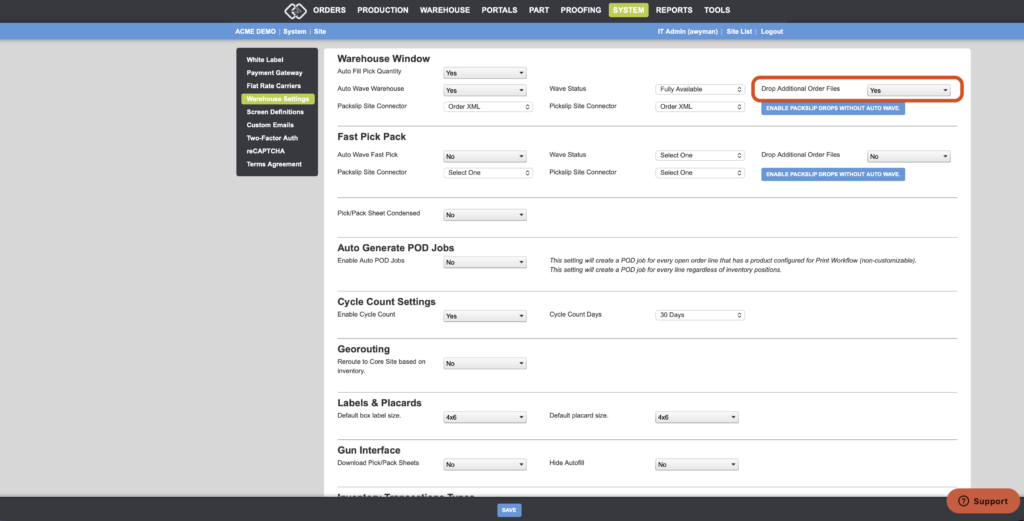
Once enabled, whenever an order is auto-waved, Propago will check for any additional files attached to that order and automatically drop them to the configured site connector. Dropped files will be named using the format Order Number – Filename (e.g., 10045-artwork-brief.pdf).
Important Notes
- Drop Additional Order Files only functions when Auto Wave Warehouse is enabled. If auto-waving is turned off, additional files will not be dropped automatically.
- Files are dropped using the same Pickslip Site Connector and Packslip Site Connector selected in your Warehouse Settings — no separate connector configuration is needed. If the two site connectors are different, the additional files will be dropped to both.
- This setting applies to any additional files attached to an order, whether they were added by an end user at checkout or by an admin from the back end.
Want to learn more about warehouse automation and order file management in Propago? Check out our previous Did You Know articles:
- Major Feature Announcement: Auto Wave Warehouse
- Did You Know Additional Files Can Be Attached To Both Parts And Orders?
- Did You Know You Can Attach Additional Files To An Order From The Back End?
If you have any questions or need support, you can contact our support team at: [email protected]
Find all of our Did You Knows here: Knowledge Library