

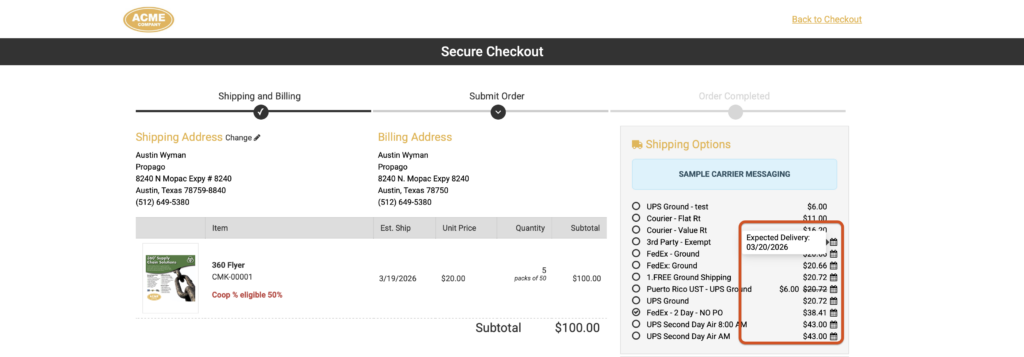
When end users are choosing a shipping method, knowing when their order will arrive is just as important as knowing the cost. With the new Expected Delivery Date feature, the shipping option section at checkout can now display an estimated arrival date alongside each carrier option — giving users the information they need to choose the right shipping method with confidence.
Benefits to You
- Reduce post-order support requests by setting clear delivery expectations before the order is placed, rather than after.
- Improve the checkout experience with carrier options that show both cost and timing in one view.
- Reliable fallback estimates for carriers that don’t return live delivery dates — configure a default Days to Deliver value so nothing is left blank at checkout.
How It Works
Enabling the Expected Delivery Date Display
- In the back end, navigate to Portals and select the portal you want to configure.
- Open Settings and enable the Show Expected Delivery Date option.
- Save your changes.
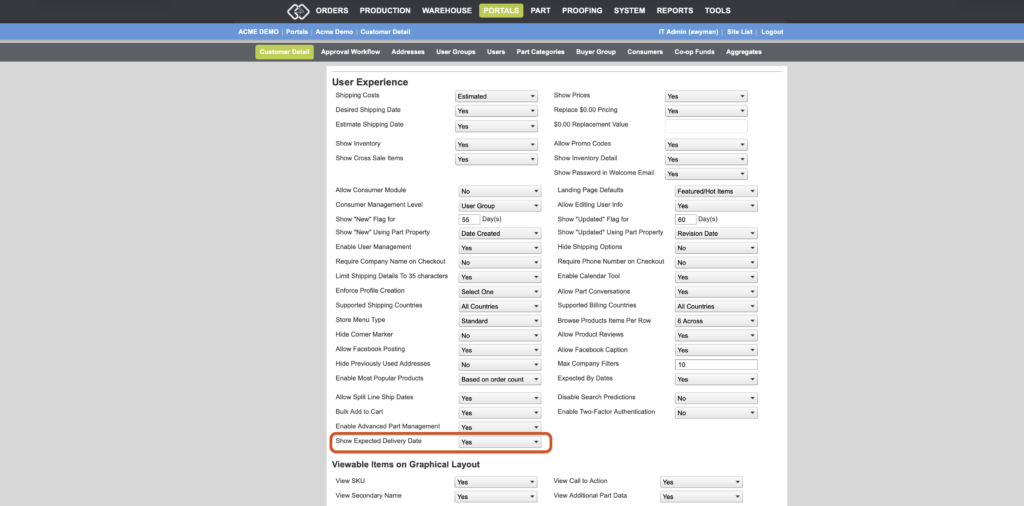
To enable this at the user group level, navigate to Portals > User Groups, select the user group, open Settings, and toggle on Show Expected Delivery Date.
Setting a Fallback Estimate for a Carrier
Some carriers — particularly overnight, 1-day, and 2-day services — may not return a live delivery date from the shipping estimate. To ensure these carriers still show an expected arrival:
- Go to System > Carriers and open the carrier you want to configure.
- Enter a value in the new Days to Deliver field.
- Save the carrier.
When a carrier doesn’t return a live delivery date estimate, the system will add this value to the order’s desired ship date to calculate and display the expected arrival.
How Delivery Dates Are Calculated
The system determines the expected delivery date using the following logic:
- The order’s desired ship date is used as the starting point.
- If the carrier returns an expected delivery date from the shipping estimate, that date is displayed.
- If the carrier doesn’t return a date but has a Days to Deliver value configured, the system adds that number of days to the desired ship date.
- If neither is available for a carrier, no expected delivery date is shown for that option.
Important Notes
- Expected Delivery Dates will only appear on the checkout screen if the Show Expected Delivery Date setting is enabled at the portal or user group level.
- The expected delivery date is stored on the order record and is visible in order details (both front end and back end) as well as standard order-level reporting.
- This feature does not require the Estimated Shipping Dates setting to be active.
Enable Expected Delivery Dates to give your users a more informed, confident checkout experience. Reach out to your Propago support team if you have questions about getting this configured.