

Nobody likes finding out an order missed its ship date without warning. Late Order Alerts let you automatically notify the user who placed an order once it falls behind schedule, so they hear it from you before they have to ask.
Late Order Alerts join the same portal-level alert framework used for abandoned cart, approval pending, and fixed asset due reminders, so if you’ve configured those before, this will feel familiar.
Benefits to You
- Get ahead of customer complaints by notifying users automatically as soon as their order is late, instead of leaving them to discover the delay on their own.
- Control the timing to fit your workflow, choosing exactly how many days after an order goes late the first alert goes out.
- Build a full follow-up cadence with up to three emails, so customers stay informed if the delay continues.
- Keep messaging on-brand by customizing the email’s content and appearance to match your other customer communications.
How It Works
Enabling Late Order Alerts:
- In the back end, go to Portals and select a customer.
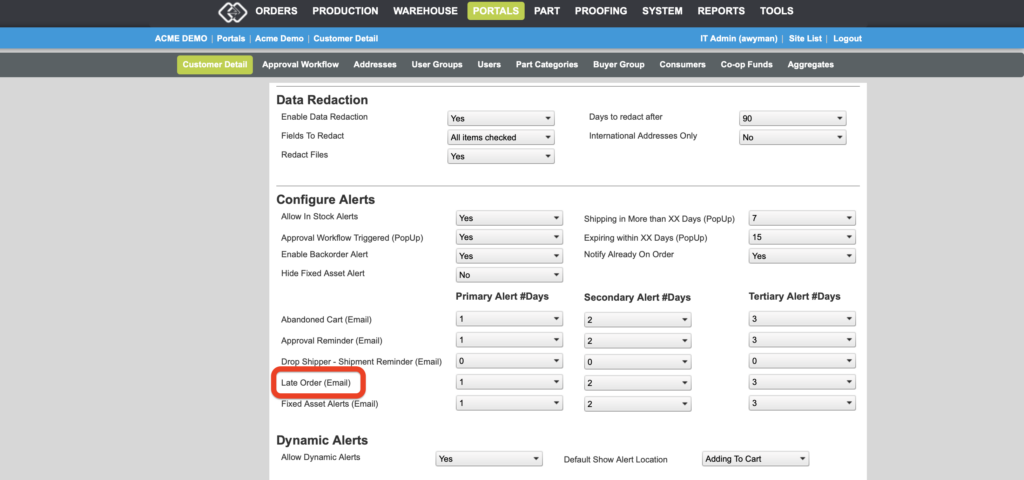
- Go to the Settings tab and scroll down to the Configure Alerts section.
- In the Primary Alert #Days column for Late Order, select a number of days other than 0. This is how many days after an order becomes late that the first email will send.
- Optionally, set the Secondary Alert #Days and Tertiary Alert #Days columns to send a second and third follow-up email at further intervals.
Customizing the Late Order email:
- Go to System > Site > Custom Emails.
- Click Add Email and select Late Order.
- Use the HTML editor and variable data tags to customize the content and appearance as desired.
Important Notes
- An order is considered late once its desired ship date has passed without the order being processed and marked as shipped.
- If left at the default, the Late Order email uses the subject line “Order Delayed – {ORDERNO}” and a standard message letting the customer know their order is behind schedule and that a shipping confirmation will follow once it ships.
Want to learn more about alert configuration in Propago? Check out our previous Did You Know articles:
- Did You Know You Can Change When Email Reminders Go Out In The Configure Alerts Section?
- Did You Know You Can Change Pop-Up Behavior With Configure Alerts?
If you have any questions or need support, you can contact our support team at: [email protected]
Find all of our Did You Knows here: Knowledge Library