
Part Limits have always helped your clients control how much of a product users can order over a set timeframe — a day, a week, a year, and so on. Now there’s a new option in the timeframe dropdown called Per Order that changes the way the limit is measured. Instead of tracking cumulative quantity across a rolling time window, a Per Order limit simply caps how much of a part can go into a single order, giving your clients a simpler way to control large individual orders without restricting how often a user can order overall.
Benefits to You
- Control order size without limiting order frequency — cap the quantity a user can request in one order without worrying about how many separate orders they place over time.
- Simplify limit logic for use cases that don’t need a rolling timeframe — some limits exist purely to prevent oversized single orders, and Per Order matches that intent exactly instead of approximating it with a timeframe.
- Full compatibility with Part Aggregates — if a Per Order limit is tied to an aggregate group, quantities across all aggregated SKUs in that order are counted together, so limits stay accurate even across product variations like sizes or colors.
How It Works
- Navigate to the part limit you want to configure. Part limits can be set from a User Group’s settings page, an individual User’s settings page, or a Part’s details page.
- Open the limit for editing and locate the Timeframe dropdown.
- Select Per Order from the list of timeframe options.
- Enter the maximum quantity allowed per order and save your changes.
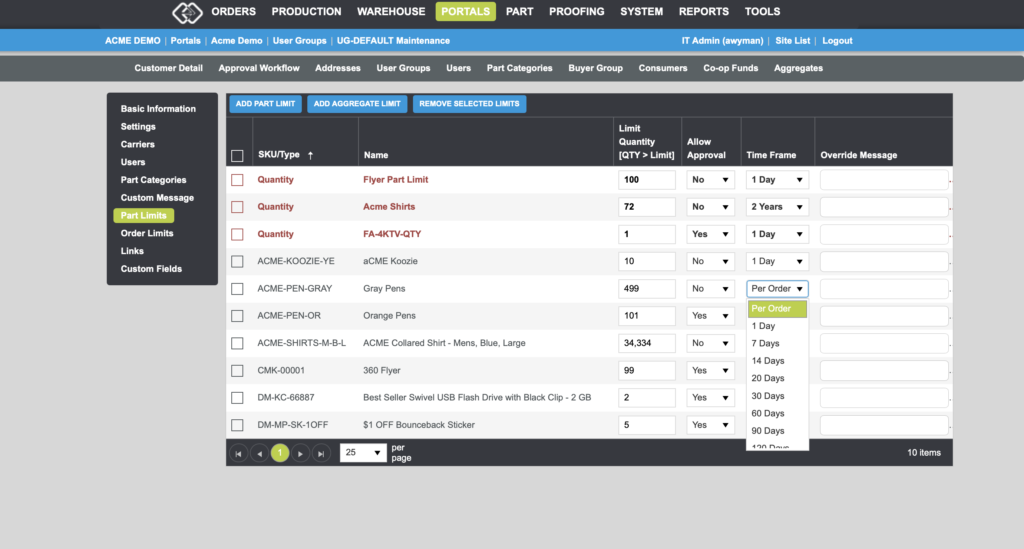
Once saved, the system will block any single order that exceeds the quantity you’ve set for that part — regardless of how much time has passed since the user’s last order or how many other orders they’ve placed.
How Per Order Differs From Timeframe Limits
Timeframe-based limits (such as 100 qty per 30 days) track cumulative quantity ordered within a rolling window, blocking a user once their combined orders reach the cap. A Per Order limit of the same quantity works differently: it only looks at the quantity in the order currently being placed. A user with a 100 qty per order limit could place ten separate 90-unit orders back to back without ever being blocked, since no single order crosses the 100-unit threshold. If your clients want to control cumulative volume over time, a timeframe option is still the right choice — Per Order is best suited to preventing any one order from being unusually large.
Note: If a part is included in a Part Aggregate, a Per Order limit will count the quantities of all aggregated parts within that single order together — so an aggregate of several shirt variations, for example, would treat 60 units of one color and 40 of another in the same order as 100 total units against the limit.
Per Order limits give your clients a cleaner way to prevent oversized individual orders without touching their existing timeframe-based controls. If you have a part limit that’s really meant to guard against one-off bulk orders rather than cumulative usage, this is a great candidate to switch over.
If you have any questions or need support, you can contact our support team at: [email protected]
Find all of our Did You Knows here: Knowledge Library
Want to learn more about part limits in Propago? Check out our previous Did You Know articles:
- Did You Know Users Can Now See Their Remaining Product Limits Before Ordering?
- Did You Know You Can Now Set Custom Messages That Display When A Part Limit Is Reached?
- Did You Know You Can Group Multiple Parts To Aggregate Together For Part Limits?
- Did You Know You Can Align Annual Part Limits To A Single Reset Date Across An Entire Portal?
- Did You Know Product Limits Allow Your Clients To Control How Much Of A Product Users Can Order Over A Time Frame?