
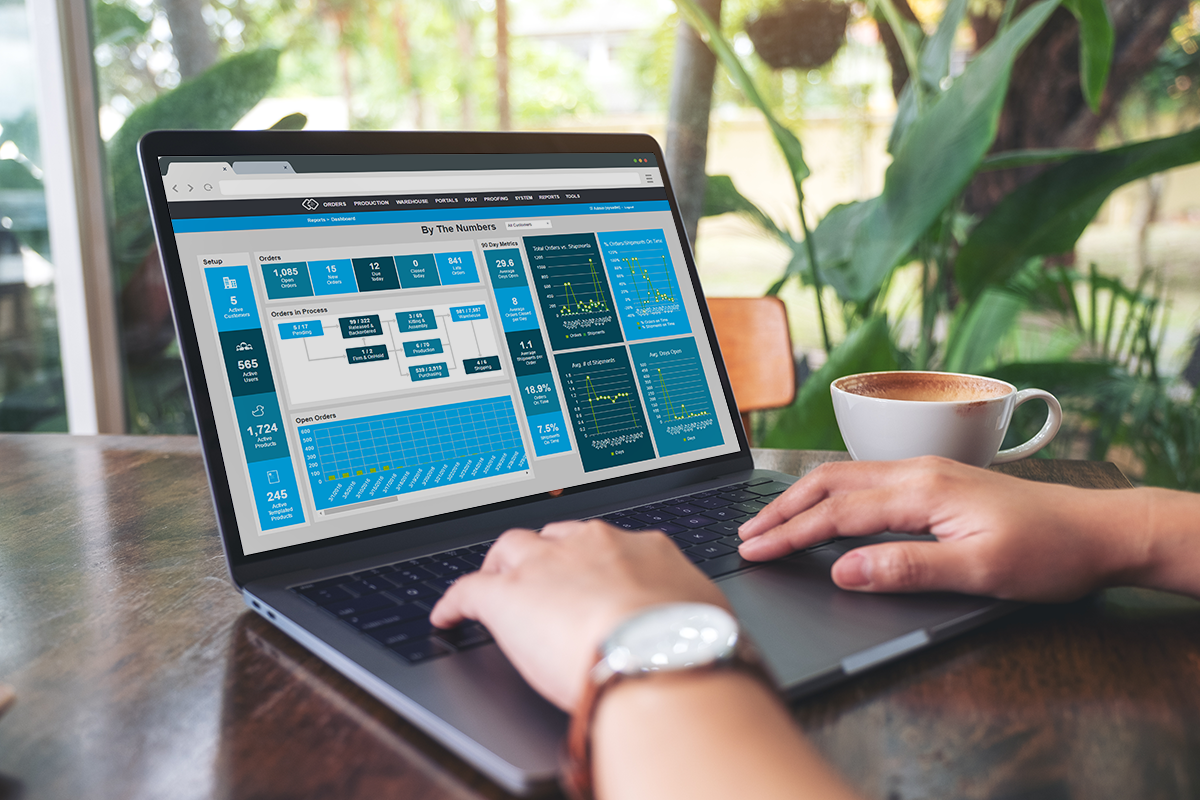
Getting a purchase order to the vendor who will fill it usually means a separate step outside your system: exporting, attaching, and emailing the details by hand. The new Outside Vendor type of vendor partner lets you link a vendor to a purchase order when you create it, then send the full purchase order details to that vendor with a single click.
Outside Vendors are set up alongside your other third-party vendors, and then appear as an option every time you create a purchase order.
Benefits
- Save time on every purchase order. Send purchase order details to your vendor straight from Propago.
- Keep vendor contacts in one place. Store the notification email addresses for each Outside Vendor once, so the right people receive every purchase order.
- Reduce errors. The email is generated from the purchase order itself, so the quantities, prices, and dates your vendor sees match what is in your system.
- Know who has each order. The assigned Outside Vendor is shown right on the purchase order details page, so you can see at a glance which vendor you are waiting on.
How It Works
Step 1: Add an Outside Vendor
- In the back end, go to System > Producing Partners.
- Click Add Outside Vendor.
- In the pop-up window, enter a name for the Outside Vendor.
- Choose a status of Active or Inactive. Only Active Outside Vendors can be selected on new purchase orders.
- Enter one or more email addresses in the Notification Emails field. To add more than one, separate the addresses with a comma.
- Save the vendor.
Step 2: Assign the vendor to a purchase order
- Go to Orders > Purchase Orders and click to create a new purchase order.
- Use the new, optional Outside Vendor dropdown to select the vendor. The dropdown lists all currently Active Outside Vendors.
- Complete the purchase order and add your parts as usual.
Step 3: Send the purchase order to the vendor
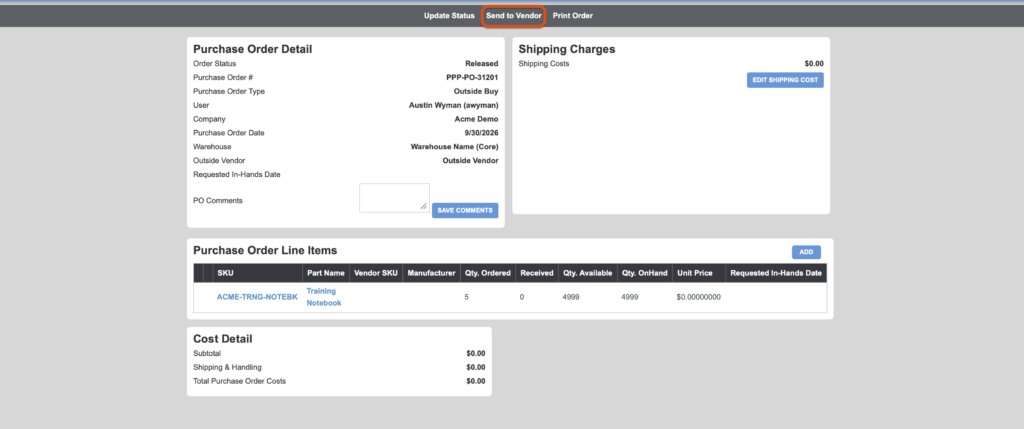
- Open the purchase order from Orders > Purchase Orders. The assigned Outside Vendor appears in the Purchase Order Detail section.
- Click Send to Vendor, found between Update Status and Print Order at the top of the page.
- Propago emails the purchase order to every Notification Email address saved for that vendor.
What Your Vendor Receives
The email includes everything the vendor needs to get started:
- Purchase order details, including the purchase order number, status, type, purchase order date, comments, and requested in-hands date.
- Items in the purchase order, including the product name and SKU, vendor SKU, manufacturer, quantity ordered, unit price, and requested in-hands date for each line.
- Cost details, including the subtotal, shipping, and total purchase order cost.
If you regularly buy from outside suppliers, try setting up your most frequent vendor as an Outside Vendor and sending your next purchase order from Propago.
Want to learn more about purchase orders and third-party vendors in Propago? Check out our previous Did You Know articles:
- Did You Know You Can Use The Purchase Order Workflow Automatically Apply Purchase Orders To SKUs When Received?
- Did You Know You Can Show Expected By Dates For Out-Of-Stock Products That Have Open Purchase Orders?
- Did You Know Part Workflow Options Enable You Control How The System Handles Different Product Types?
- Did You Know Your Clients Can Offer Products From Any Third-Party Vendor On Their Storefront?
If you have any questions or need support, you can contact our support team at: [email protected]
Find all of our Did You Knows here: Knowledge Library