

Some orders carry shipping addresses that shouldn’t be visible to anyone beyond what’s strictly necessary to get the order out the door. The new Sensitive Ship To setting lets you flag a portal or user group so that shipping addresses on every order placed under it are automatically suppressed across the platform and permanently redacted from the system after just three days, giving your clients a purpose-built way to handle their most privacy-sensitive orders.
Benefits
- Protect vulnerable or confidential recipients — suppress address visibility everywhere it would normally appear, reducing the risk of sensitive shipping information being seen by anyone who doesn’t strictly need it.
- Automatic, fast redaction independent of your other settings — sensitive addresses are redacted after just 3 days regardless of your portal’s broader Data Redaction configuration, so this protection applies on its own timeline even if standard redaction is off or set to a much longer window.
- Controlled emergency access for admins — back end users aren’t locked out entirely; they can still view a sensitive address when needed through a deliberate, time-limited reveal process.
- Consistent enforcement across every order channel — the flag is respected whether the order comes through the standard checkout, Order Importers, Bulk Checkout, or the API.
How It Works
Enabling the Setting
- In the back end, go to Portals, select a customer, and open Settings to enable Sensitive Ship To for the entire portal — or go to User Groups, select a specific group, and open its Settings to enable it for just that group.
- Locate the Sensitive Ship To setting in the Order Settings section and set it to Yes.
- Save your changes.
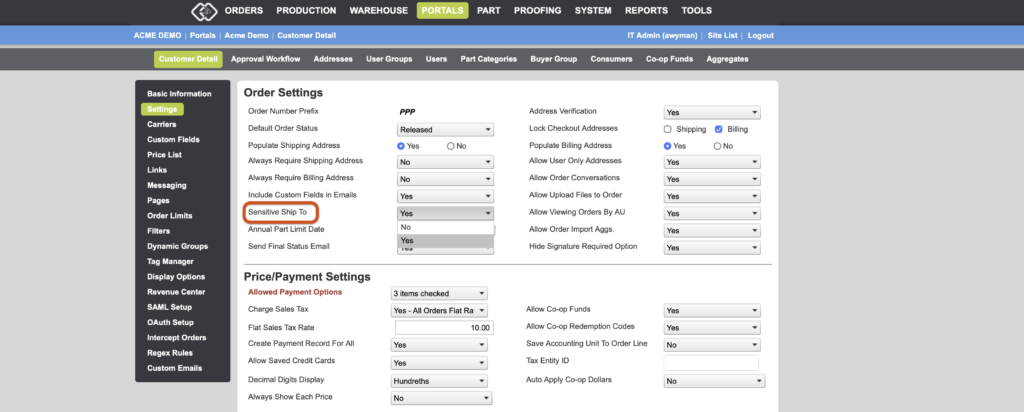
Once enabled, every new order placed by a user under that portal or user group will have its shipping address automatically flagged as sensitive at the time of order — this applies going forward and does not affect orders placed before the setting was turned on.
What Happens on a Sensitive Order
- Anywhere the shipping address would normally display — the user’s front end order details, the back end Admin Order and Order Approval pages, and order, approval, and shipping confirmation emails — the address is replaced with the message “Sensitive ship to address suppressed.”
- The address is not saved to the user’s Previously Used Addresses list in the address book, so it won’t resurface as a quick-select option on future orders.
- Sensitive orders are also excluded from returning in BASE reports.
Viewing a Sensitive Address as an Admin
- Go to Orders > Search and select the order in question.
- Beneath the suppressed address message, click Show Sensitive Address.
- A warning dialog appears: “THIS IS A SENSITIVE SHIPPING ADDRESS. CONTINUE ONLY IF YOU ARE IN A SAFE/PRIVATE ENVIRONMENT.” Click Show Address to confirm.
- The address displays for 60 seconds, with a countdown shown beneath it, before automatically hiding again.
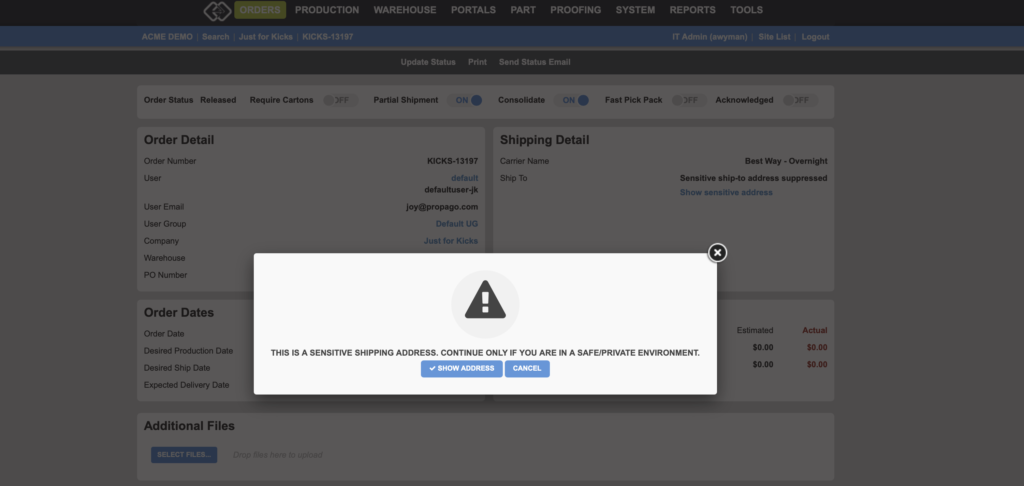
This reveal option is only available until the address is redacted — once 3 days have passed since the order closed, the address is gone from the system entirely and can no longer be viewed by anyone.
How Redaction Timing Works
Three days after an order’s Closed Date, any order address still flagged as sensitive and not yet redacted is automatically redacted and marked as such — this happens independently of your portal’s standard Data Redaction settings.
This means the 3-day redaction for sensitive orders can behave differently from the rest of your portal’s address data. For example, if your portal’s Data Redaction feature is turned off entirely, addresses marked sensitive will still redact after 3 days. Or if Data Redaction is set to redact all portal addresses after 90 days, but one user group has Sensitive Ship To enabled, orders from that user group will redact after 3 days while every other order on the portal follows the standard 90-day schedule.
If your clients manage orders where shipping address privacy is a real concern, Sensitive Ship To gives them a dedicated, low-maintenance way to lock that information down without changing how the rest of their portal handles addresses.
If you have any questions or need support, you can contact our support team at: [email protected]
Find all of our Did You Knows here: Knowledge Library
Want to learn more about address management in Propago? Check out our previous Did You Know articles: